Friday, February 17, 2017
How to Change Default Saving Format in MS Word 2007
How to Change Default Saving Format in MS Word 2007
As we know Docx is a new default file saving format being introduced in Word 2007 having reduced overall file size. But, sometimes we don’t want the file to be saved under docx format due to many people are still using Office 2000/2003/XP, that make the new file format not fully compatible with existing word versions. Microsoft Office allow users to change the file saving format each tie they save their document. But it is sheer a waste o time changing the file format from docx to doc each and every time when you want to save a file, So permanently change the default file saving format from docx to doc.
Here user will find the solution of queries like:
- How to convert Docx to Doc?
- How to change the File saving format in Word 2007?
- Click Office button,
 as located on the left top in word 2007
 - On the drop down menu, click Word Options button as located at bottom:

- For the pop up Word Options window, click Save as shown on left panel.
- Under Save documents section, click on the drop down of “Save files in this format”, then choose “Word97-2003 Document (*.doc)”.

Source
Available link for download

Wednesday, January 4, 2017
How to change default “Program Files” folder location
How to change default “Program Files” folder location
 |
Follow this procedure.
1. Click Start --> Run (or Windows key + R)
2. Type regedit and click OK.
3. Navigate to key:
HKEY_LOCAL_MACHINE SOFTWARE Microsoft Windows CurrentVersion4. Now youll see on the right window "ProgramFilesDir" and double click it and modify data in this key by the new path for the installation folder. For example, change from C: to D: to change the partition.
5. Reboot your computer for change to take effect.
Available link for download
Thursday, December 15, 2016
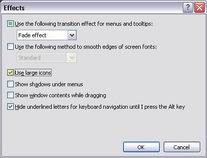
How to Change Icon Size
How to Change Icon Size
- Right-click on the desktop.
- Choose Properties.
- Click Appearance.
- Click Effects.
- Check Use Large Icons.
- Click OK.
Available link for download
Tuesday, November 8, 2016
How to Change Desktop Wallpaper in Windows 7 Starter
How to Change Desktop Wallpaper in Windows 7 Starter

Windows 7 Starter is the edition of Windows 7 that contains the fewest features. You cant have Aero theme in this version. You cant change desktop wallpaper, Screen Saver, Themes and Visual Style. In fact, you dont see "Personalize" menu in desktop context menu.
With this "Personalization Panel" created by HB860 for Windows 7 Starter and Home Basic Editions brings Personalize Panel of Windows 7 Ultimate Edition to low-end restricted editions.
It allows you to:
* Change Desktop wallpaper
* Theme support
* Aero glass support
* Desktop context menu integration
* Change window and taskbar color
* Portable version also available
Available link for download