Showing posts with label network. Show all posts
Showing posts with label network. Show all posts
Sunday, January 29, 2017
Free Download Network Traffic View Terbaru
Free Download Network Traffic View Terbaru
Software Network Traffic View merupakan aplikasi yang dapat digunakan sebagai sebuah alat untuk pemantauan jaringan yang menampilkan statistik umum tentang lalu lintas jaringan Anda. Aplikasi ini melakukan monitoring jaringan dengan cara menangkap paket-paket data yang melintasi melalui adaptor jaringan pada komputer Anda.
Bila tidak gratis, link rusak, atau ada kesalahan lain, silahkan hubungi kami.
Review Singkat
Network Traffic View merupakan sebuah aplikasi ringan yang memiliki fungsi untuk melaukan monitoring atau pemantauan data yang melalui jaringan pada komputer kita. Aplikasi ini mampu menampilkan data statistik umum tentang lalu lintas pada jaringan kita, dengan cara menangkap paket-paket data yang melalui adaptor jaringan pada komputer.
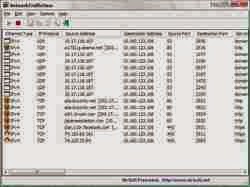
Aplikasi Network Traffic View menampilkan data statistik paket data, yang dikelompokkan berdasarkan beberapa faktor antara lain; Jenis Ethernet, IP Protokol, Alamat Sumber / Tujuan, dan Sumber port / Destination. Sehingga data yang disajikan cukup lengkap jika kita ingin melakukan analisis lebih lanjut tentang paket-paket data yang kita gunakan.
Ketika kita menjalankan aplikasi ini, setiap baris statistik yang ditampilakan software, memberikan berbagai informasi yang sangat berguna bagi kita. Diantara data yang ditampilkan, adalah sebagai berikut; Ethernet Type (IPv4, IPv6, ARP), IP Protocol (TCP, UDP, ICMP), Alamat Sumber, Tujuan Alamat, Sumber Port, Port Tujuan, Name Service (http, ftp, dan sebagainya), paket Hitung, total Paket Ukuran, Ukuran Total data, Kecepatan data, Maksimum Kecepatan data, Ukuran paket rata, Pertama / Waktu paket terakhir, Durasi, dan proses ID / Nama (untuk koneksi TCP).
System Requirements:
* This utility works on any version of Windows, starting from Windows 2000 and up to Windows 8, including 64-bit systems.
* You can also try to use NetworkTrafficView without installing any driver, by using the ´Raw Sackets´ method. Unfortunately, Raw Sackets method has many problems:
It doesn´t work in all Windows systems, depending on Windows version, service pack, and the updates installed on your system. On some systems, Raw Sackets works only partially and captures only the incoming packets. On some other systems, it doesn´t work at all.
On systems that ´Raw Sackets´ method works properly, it can only capture IPv4 TCP/UDP packets. It cannot capture other type of packets, like the other capture drivers.
On Windows 7 with UAC turned on, ´Raw Sackets´ method only works when you run NetworkTrafficView with ´Run As Administrator´.
NetworkTrafficView is a network monitoring tool that captures the packets pass through your network adapter, and displays general statistics about your network traffic. The packets statistics is grouped by the Ethernet Type, IP Protocol, Source/Destination Addresses, and Source/Destination ports. For every statistics line, the following information is displayed: Ethernet Type (IPv4, IPv6, ARP), IP Protocol (TCP, UDP, ICMP), Source Address, Destination Address, Source Port, Destination Port, Service Name (http, ftp, and so on), Packets Count, Total Packets Size, Total Data Size, Data Speed, Maximum Data Speed, Average Packet Size, First/Last Packet Time, Duration, and process ID/Name (For TCP connections).
Untuk mendapatkan software ini, silahkan download pada halaman berikut.
 | Size License Publisher OS Post Date Category Installer Tes Virus | : : : : : : : : | 102.6 KB Gratis nirsoft.net Windows 2000/XP/Vista/7/8 Agustus 2014 Internet Data Offline - |
Review Singkat
Network Traffic View merupakan sebuah aplikasi ringan yang memiliki fungsi untuk melaukan monitoring atau pemantauan data yang melalui jaringan pada komputer kita. Aplikasi ini mampu menampilkan data statistik umum tentang lalu lintas pada jaringan kita, dengan cara menangkap paket-paket data yang melalui adaptor jaringan pada komputer.
Aplikasi Network Traffic View menampilkan data statistik paket data, yang dikelompokkan berdasarkan beberapa faktor antara lain; Jenis Ethernet, IP Protokol, Alamat Sumber / Tujuan, dan Sumber port / Destination. Sehingga data yang disajikan cukup lengkap jika kita ingin melakukan analisis lebih lanjut tentang paket-paket data yang kita gunakan.
Ketika kita menjalankan aplikasi ini, setiap baris statistik yang ditampilakan software, memberikan berbagai informasi yang sangat berguna bagi kita. Diantara data yang ditampilkan, adalah sebagai berikut; Ethernet Type (IPv4, IPv6, ARP), IP Protocol (TCP, UDP, ICMP), Alamat Sumber, Tujuan Alamat, Sumber Port, Port Tujuan, Name Service (http, ftp, dan sebagainya), paket Hitung, total Paket Ukuran, Ukuran Total data, Kecepatan data, Maksimum Kecepatan data, Ukuran paket rata, Pertama / Waktu paket terakhir, Durasi, dan proses ID / Nama (untuk koneksi TCP).
System Requirements:
* This utility works on any version of Windows, starting from Windows 2000 and up to Windows 8, including 64-bit systems.
* You can also try to use NetworkTrafficView without installing any driver, by using the ´Raw Sackets´ method. Unfortunately, Raw Sackets method has many problems:
It doesn´t work in all Windows systems, depending on Windows version, service pack, and the updates installed on your system. On some systems, Raw Sackets works only partially and captures only the incoming packets. On some other systems, it doesn´t work at all.
On systems that ´Raw Sackets´ method works properly, it can only capture IPv4 TCP/UDP packets. It cannot capture other type of packets, like the other capture drivers.
On Windows 7 with UAC turned on, ´Raw Sackets´ method only works when you run NetworkTrafficView with ´Run As Administrator´.
NetworkTrafficView is a network monitoring tool that captures the packets pass through your network adapter, and displays general statistics about your network traffic. The packets statistics is grouped by the Ethernet Type, IP Protocol, Source/Destination Addresses, and Source/Destination ports. For every statistics line, the following information is displayed: Ethernet Type (IPv4, IPv6, ARP), IP Protocol (TCP, UDP, ICMP), Source Address, Destination Address, Source Port, Destination Port, Service Name (http, ftp, and so on), Packets Count, Total Packets Size, Total Data Size, Data Speed, Maximum Data Speed, Average Packet Size, First/Last Packet Time, Duration, and process ID/Name (For TCP connections).
Untuk mendapatkan software ini, silahkan download pada halaman berikut.
Available link for download

Tuesday, October 11, 2016
How To Set Up Wireless Printer Network
How To Set Up Wireless Printer Network
With an increasing number of printers offering wireless connectivity, the opportunity for end users have never been more plentiful. Often times installing a wireless printer is simple and hassle-free. Here are a few simple steps to ensure success.
· Location, Location, Location - Anyone who has used a laptop with some form of wireless connectivity such as Wi-Fi has undoubtedly had some frustrations with the connection at one point or another. In addition to the factors related to the signal, it is important to consider placing it in a location that is easily accessible for more than just one person as well as space for things like ink and paper. In a office setting, the printer should be paired with a computer that can serve as the printer server.

Wireless Technology Choices - When thinking about the setup, you also have choices, Wi-Fi or Bluetooth. More and more printers are being introduced with Wi-Fi technology, and it has a larger range than Bluetooth capable machines. If your printer did not come with that technology built-in, you can buy a wireless card to plug into the USB port of your printer.
· Getting Ready to Share - In order to share a network printer, you have to change settings in operating system on the machine serving as the printer server. This is accomplished in Windows Vista through going to the Control Panel and then activating file and printer sharing in the LAN (local area network) settings.
· Sharing the Printer - In addition to setting up the sharing centrally, sharing must be set up on all the PCs that will be connecting the wireless printer. In Vista, the easiest thing to do is to go into Control Panel, switch over to the classic view, and then select Printers. Find the appropriate printer and select Properties. Once in Properties, select the box that allows the printer to be a shared device.
Troubleshooting your Wireless Printer - As was mentioned above, wireless connectivity can sometimes be very suspect at best. It is important then to have someone or have multiple people monitor the strength and status of the connection often. If it seems that one spot is especially troublesome, you may have to consider moving the printer
Post a Question....
Any Kind of Canon Printer Problems Call Us
+1-855-517-2433 (Toll Free)
+1-855-517-2433 (Toll Free)
Available link for download
Subscribe to:
Posts (Atom)